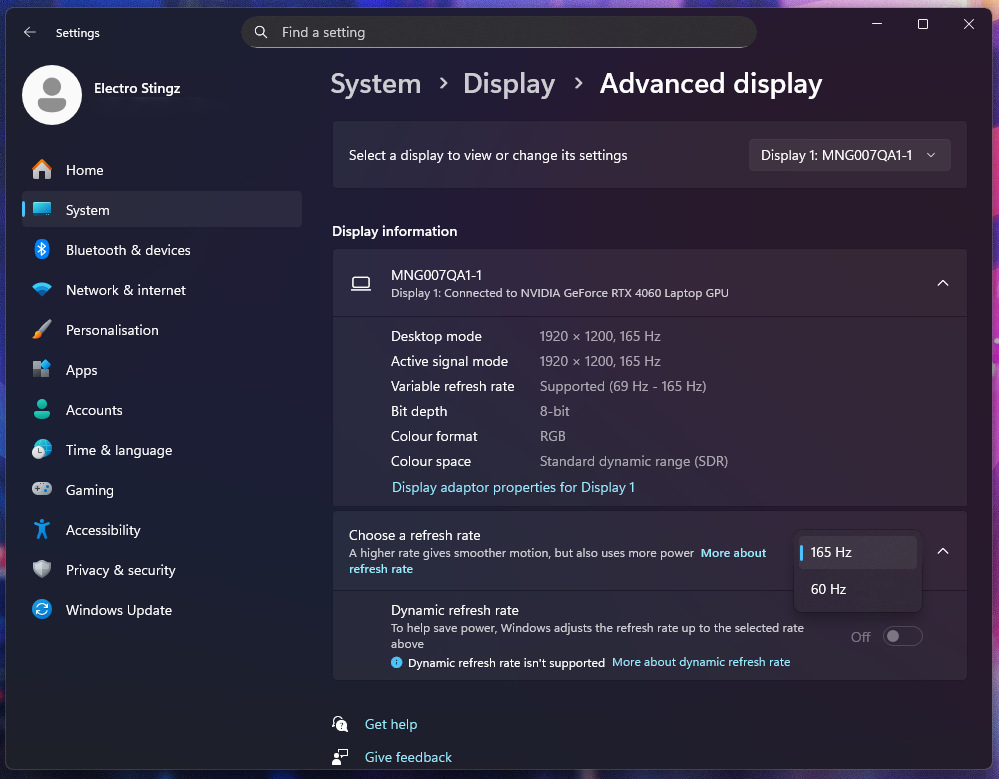
Monitor refresh rates are usually tied to the monitor profile / driver so if you have a monitor capable of say 165Hz but Windows only allows you to choose 60Hz or 165Hz you will only have these two options available. Whilst this is not usually an issue you may want to decrease the refresh rate to save on power especially for laptop displays. Whatever the reason you can modify the monitor driver profile with CRU software, Custom Resolution Utility by ToastyX.
Default Monitor settings for ASUS ROG Strix G16 2024
Download CRU from this website
Website is https://www.monitortests.com
Adding a custom refresh rate
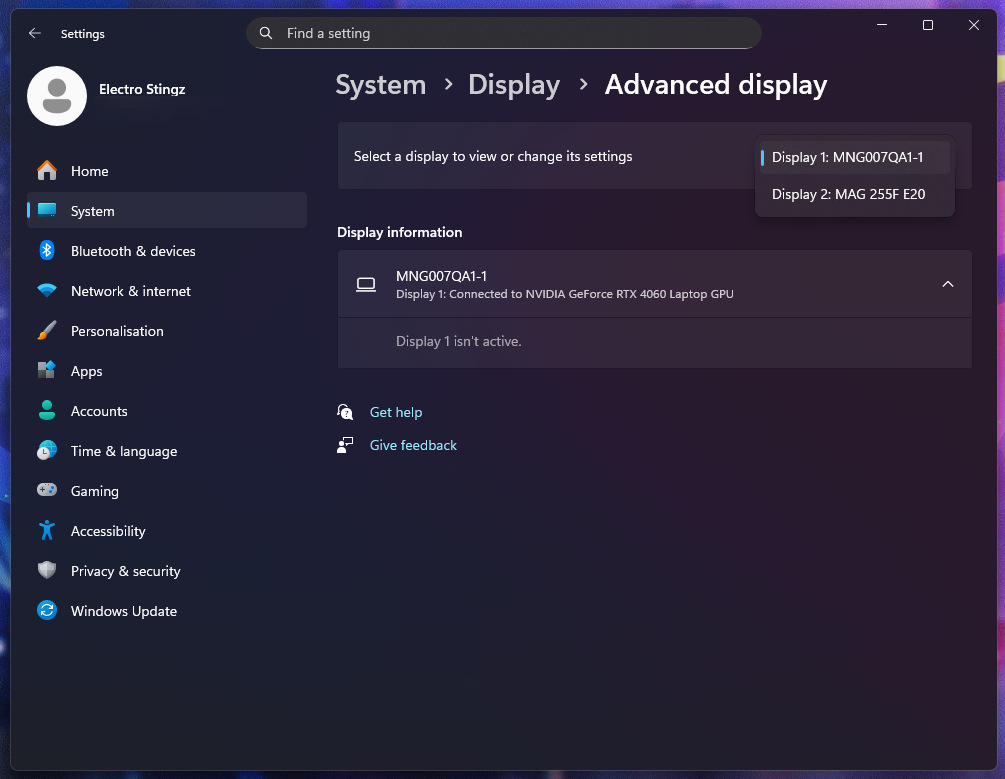
If you have multiple displays check the monitor you wish to modify in Windows display settings.
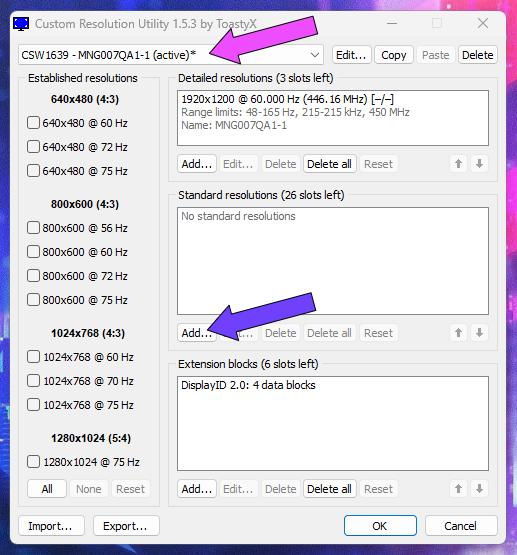
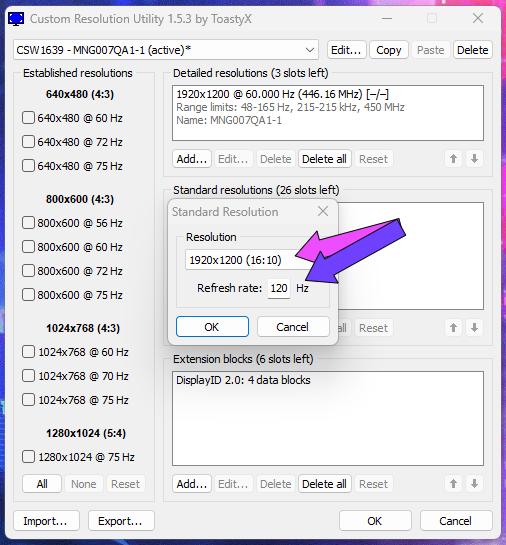
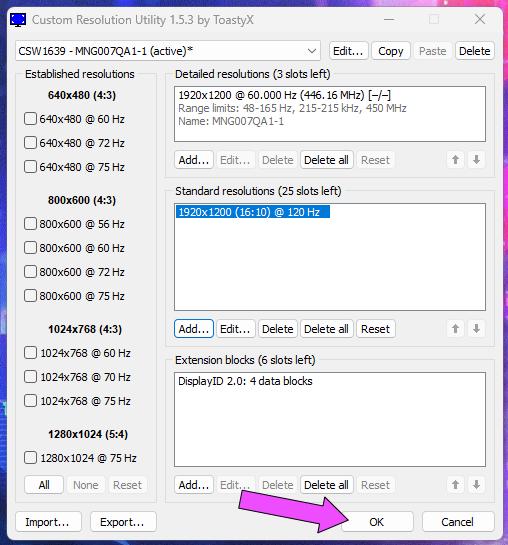
- Run CRU
- Choose the monitor you wish to modify
- Choose Add in the Standard Resolutions section
- Choose the Resolution and type the Hz, press on OK
- Then Press on OK
- Restart Windows
- Check the Refresh Rates, 120Hz showing as 119.9Hz.
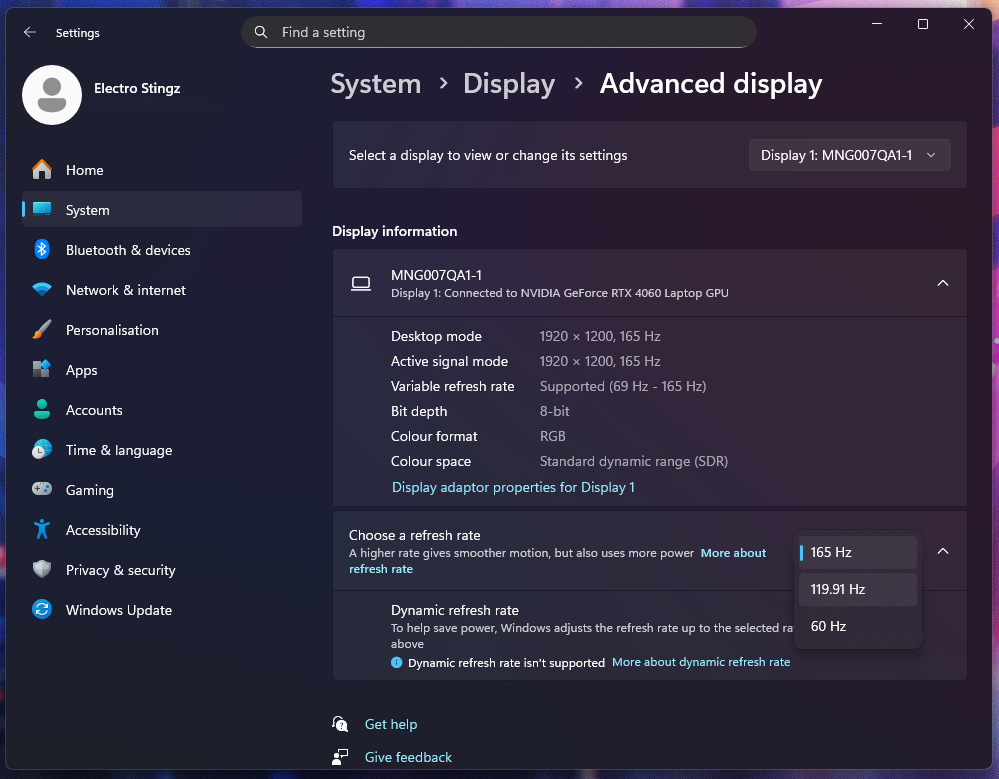
And that’s it, you will now be able to choose the setting provided the monitor is capable. Variable refresh rate / adaptive V-Sync / G-Sync you should for the best possible smoothness consider running the Hz above your intended FPS setting as some games cannot sustain the FPS, it may be slightly above at times so provided you are also above on the Hz this will always stay in sync and play smooth.