The i9-14900HX will always run hot especially if the boost clocks are on AUTO with the default voltages averaging 90 Degrees C or above. This isn’t cause for concern if everything is working fine but it comes with some drawbacks such as the CPU being on the border of thermal throttling which can impact your gaming performance. There are also disadvantages to any CPU running hot and I’m not going to go into details as it’s a big subject, the point of this article is to show some ways to lower the operating temperature of the Intel i9-14900HX laptop CPU.
Assuming your laptop is functioning OK (the cooling is working), then you can lower the temperatures if you adjust some CPU settings using Intel’s XTU Software.
Intel XTU Software Requirements
Prior to using Intel XTU you need to make sure your laptop supports voltage adjustments (Under Volt Protection disabled) and has the ability in the BIOS to switch off Intel VT-D / Virtualisation options. If these cannot be done Intel XTU will fail to install or disallow voltage adjustments.
https://www.intel.com/content/www/us/en/download/17881/intel-extreme-tuning-utility-intel-xtu.html
How much boost do you need?
You need to consider what performance you want from your CPU and also how it works as by default the i9-14900HX will never run all the cores at 5.8GHz. The design only allows 2 cores to run at 5.8GHz at the same time, everything else is 5.2GHz and all 8 performance cores are dependent on the CPU load, Temps and Power draw so under an all core demanding workload the boost clocks are reduced significantly. Intel’s Turbo boost feature is mainly used to improve single core performance workloads which does impact gaming but at the same time when all the cores are being used it can only go so far.
As an example, in a gaming environment if you are in a small area with not much going on then you run into a battle with 24 players around, explosions, smoke, world detail, trees… this all impacts the workload, GPU included. The CPU will be dynamically, on the fly, constantly changing the boost clock and with that comes the biggest drawback with the i9-14900HX, the CPU Vcore voltage will increase as it scales with the boost clock and that means higher temperatures due to an increased power consumption.
i9-14900HX points of interest
- 16 efficient cores that are not being used in gaming, 1.6GHz boosts up to 4.1GHz.
- 8 performance cores, 2.2GHz boosts up to 5.8GHz (2 cores max)
- Only the performance cores have HT (Hyper threading enabled)
Easy adjustments to lower the Temperature
- HT offers minimal gains in a gaming environment and unless all you focus on are benchmark scores disabling this will decrease the power draw and reduce heat output.
- 16 efficient cores that have no impact on gaming, you can run these at the lowest frequency and reduce their voltage for a lower power draw / heat output.
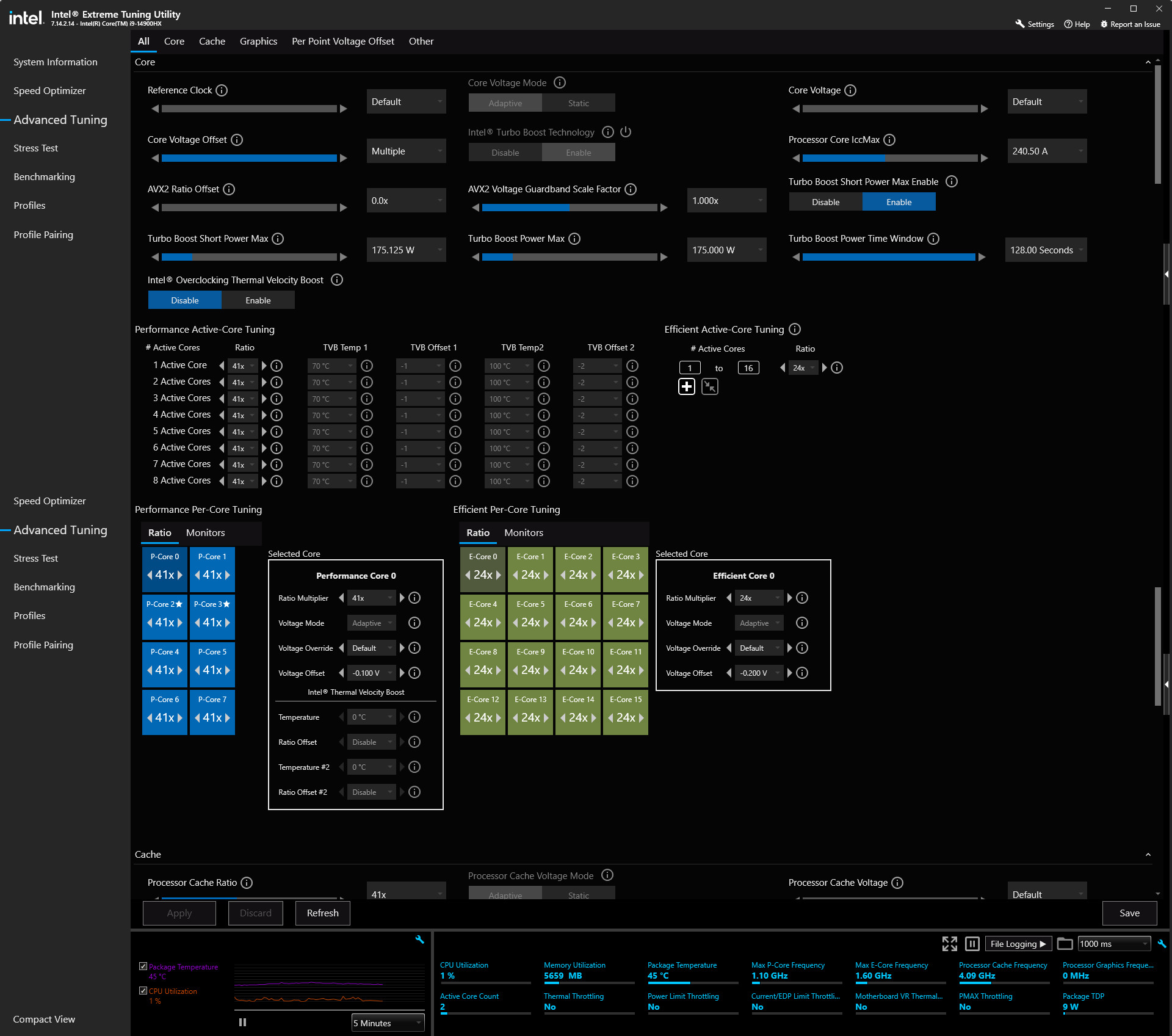
- If you set the E-core max boost clock to 2.4GHz (x24) you will be able to reduce their Vcore by 0.2v (offset is -0.2v)
The performance cores depend on what you want and how the game performs so you will need to tweak accordingly.
- If you set the P-core max boost clock to 4.1GHz (x41) you will be able to reduce their Vcore by at least 0.1v (offset is -0.1v), much lower is possible.
Intel XTU Software Settings
Additional Notes
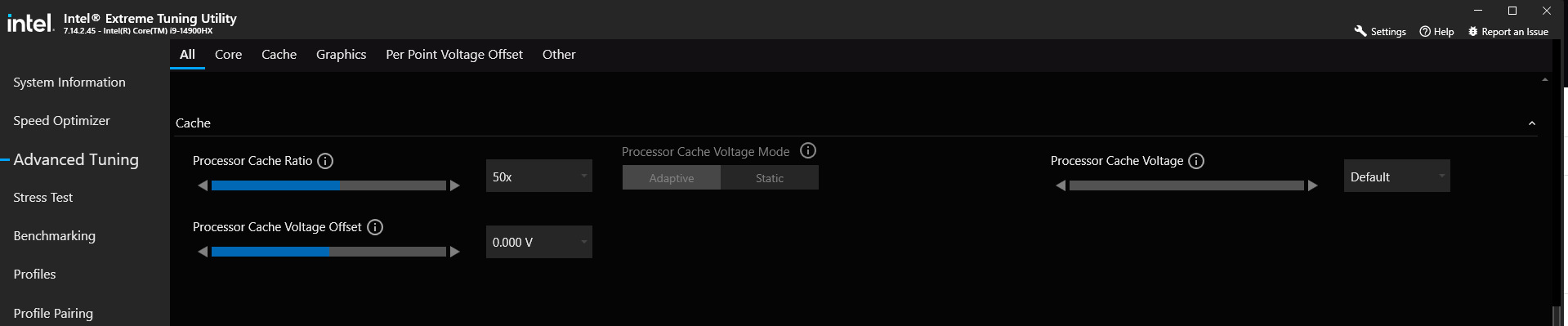
You might be able to go much lower on the P-core voltage depending on the CPU and other settings. If your laptop allows the E-cores to be disabled give this a go as it will allow the P-Cores to have slightly more power for boosting. Also another setting that will help with the CPU temperature is the Cache Ratio (Ring BUS ratio), this will be on a default value of x50 but if you choose to lower the P-Core frequencies there is no point leaving this on x50 and for the best possible performance in terms of internal latencies within the DIE, Core to Core connectivity you should match the Cache Ratio to the P-core Ratio. (Higher will influence L3 performance / memory read / write performance so if you don’t mind the extra heat leave it at x50).
CPU Benchmark Scores Are lower With Slower E-Cores
Some benchmarks will use the E-Cores for CPU multithreaded testing so you will notice a reduction is CPU scores if you disable or lower the E-Core frequencies. As mentioned previously the E-Cores are not used for gaming so it makes no sense to benchmark the E-cores or look at benchmark scores that show a high CPU score if these are included as part of the testing. By not using the E-Cores the power saved will be available to the P-Cores so they might actually be able to boost higher.
If you really want to tweak the laptop for gaming and optimise CPU latency disabling the 16 E-Cores is something you should try or at least consider (unless you really do need them for the application you run) as these also share the L3 cache with the P-Cores.
Performance Impact
Running the CPU P-Cores at the highest possible frequency is the main goal whilst limiting all forms of thermal throttling. From what I can determine on my laptop and i9-14900HX CPU the following occurs.
| P-Cores only / HT off | 4.0 GHz | 4.5 GHz | 5.0 GHz |
| Peak Temperature | Stays under 90 DegC | Up to 90 DegC | Runs Over 90 DegC |
| Throttling PROCHOT | No | No | Yes |
The above is based on using Arctic MX-6 thermal paste with a Llano cooling pad at 300RPM, 1920×1080, 120fps gaming. At anything over 4.5GHz the CPU would hit the thermal throttle limit at times and the higher I went the more often it occurred. Your results will vary plus it also depends on the load / game being played.
Example of 5.0GHz game play, Robocop Rogue City
As you can see here the CPU peaks quite high but the average sustained temperature is reasonable for all the P-Cores being at 5.0GHz. Details are in the video link but if you want to test temperatures consider this approach as playing a game is more realistic than running benchmarks and stress test programs.