I’ve been looking at various cooling pads for a while and one which appears to stand out from everything else is the Llano range of laptop cooling pads. They are expensive but the design element is the main feature which caught my eye in that they have a foam padding where the laptop sits to create an air seal underneath. This should be good as it means air is hopefully forced through the laptop base vents and adds a level of sound dampening at the same time. Another interesting point is the use of a 12V (36W) fan / power supply so the fan itself will be able to provide more torque and hopefully better airflow than any 5V USB powered alternative. I managed to pick this one up for £55 after Amazon discounts so it’s still expensive but compared to around £100 it’s something which I believe will actually perform quite well.
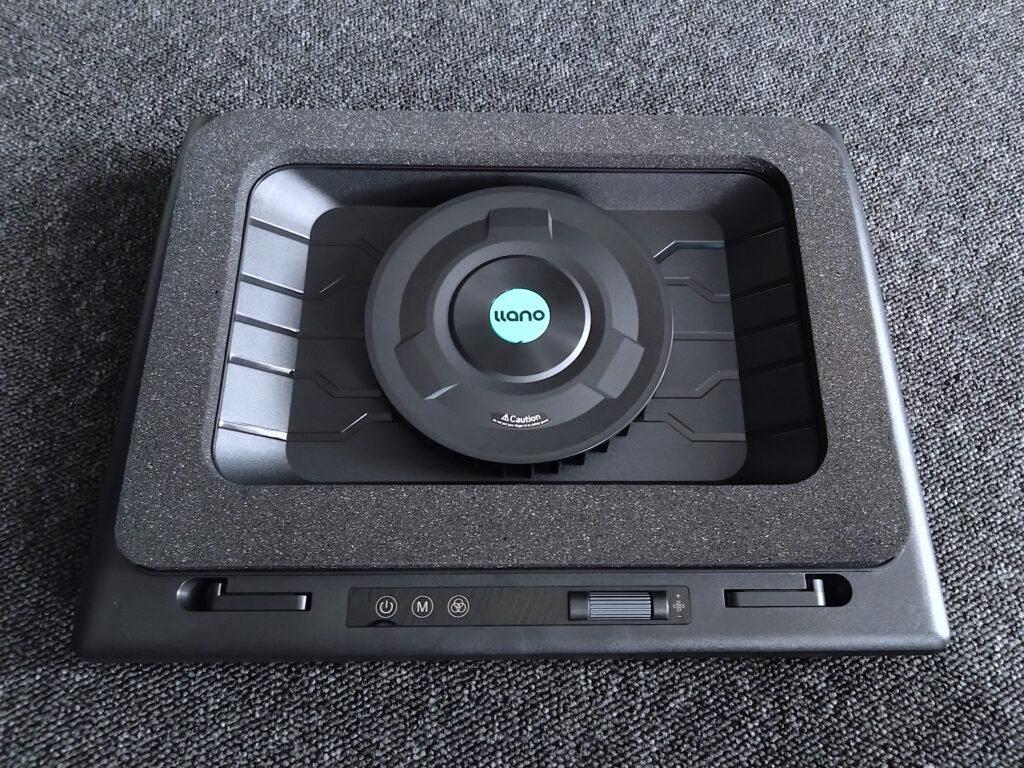
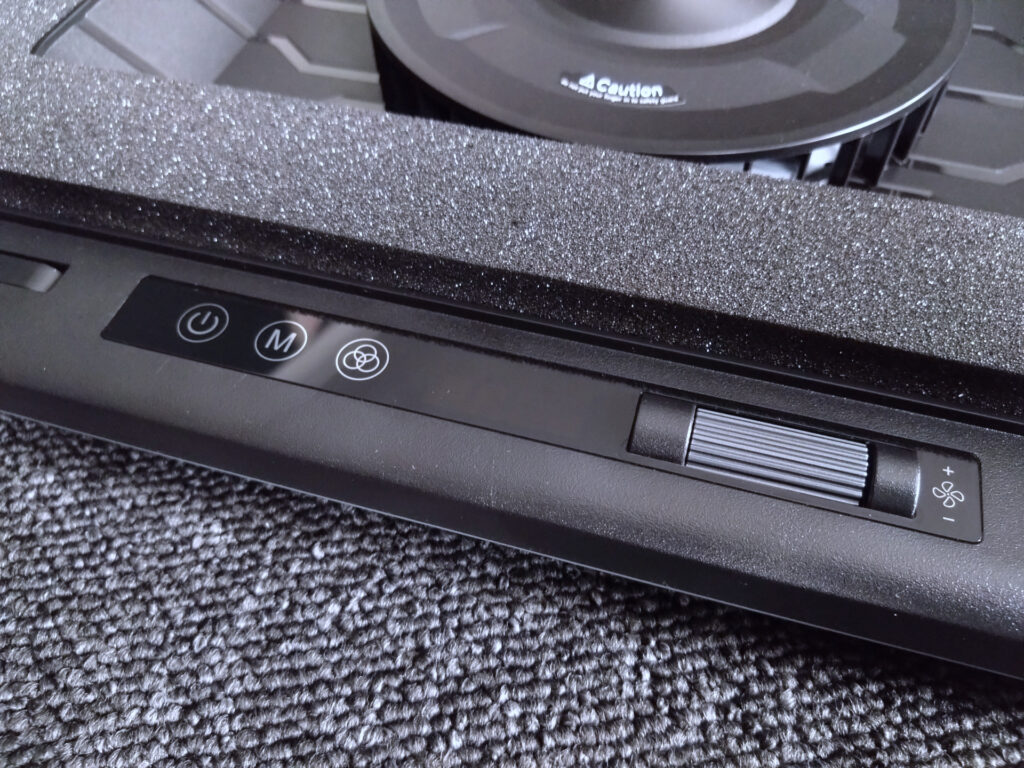
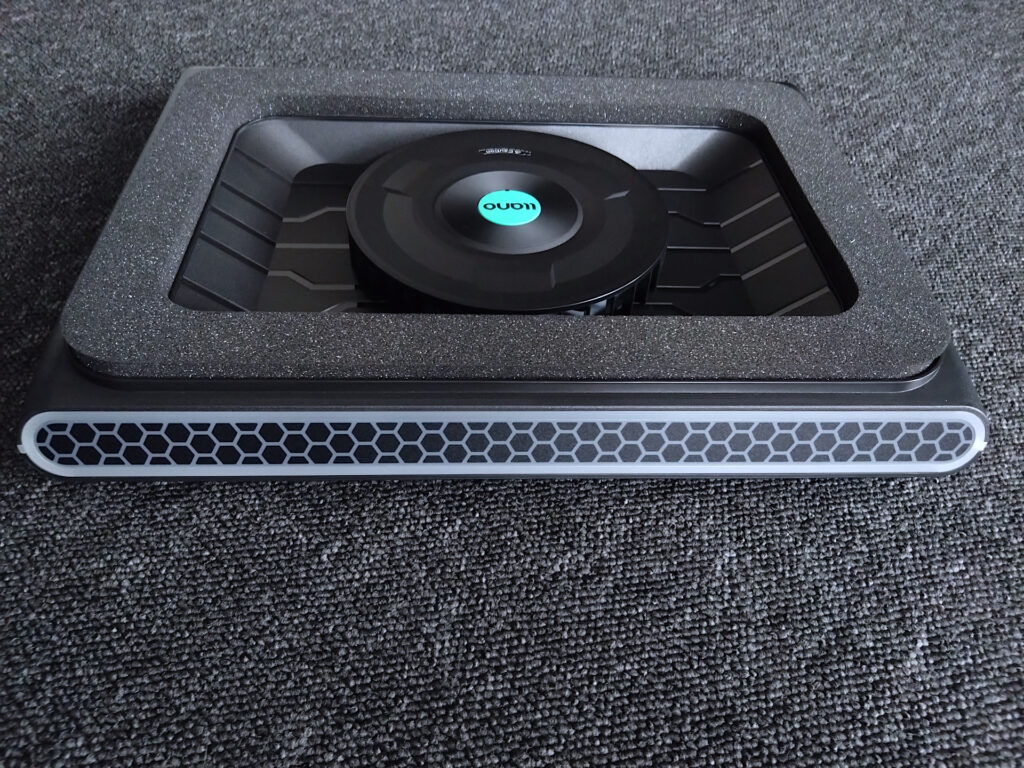
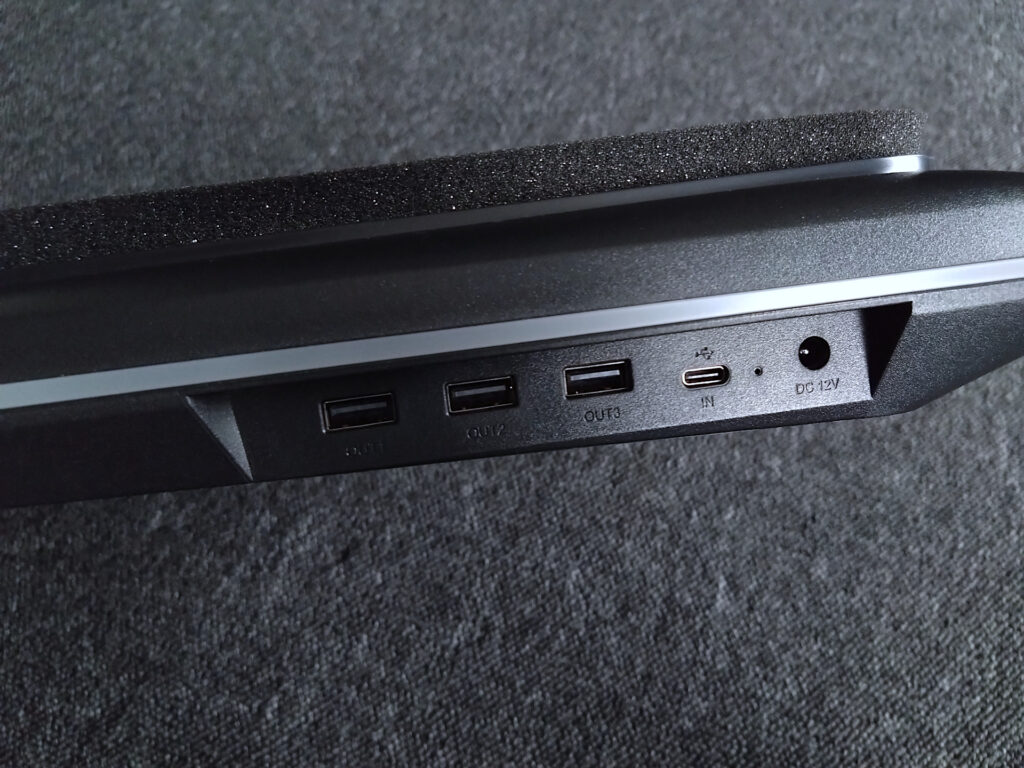
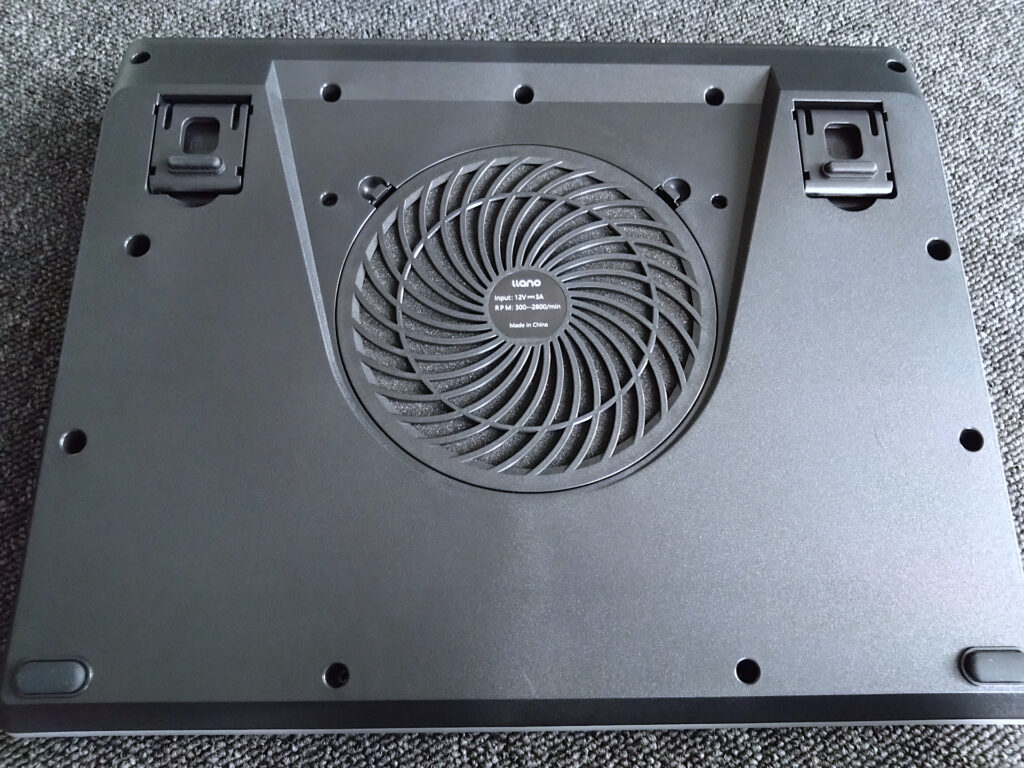
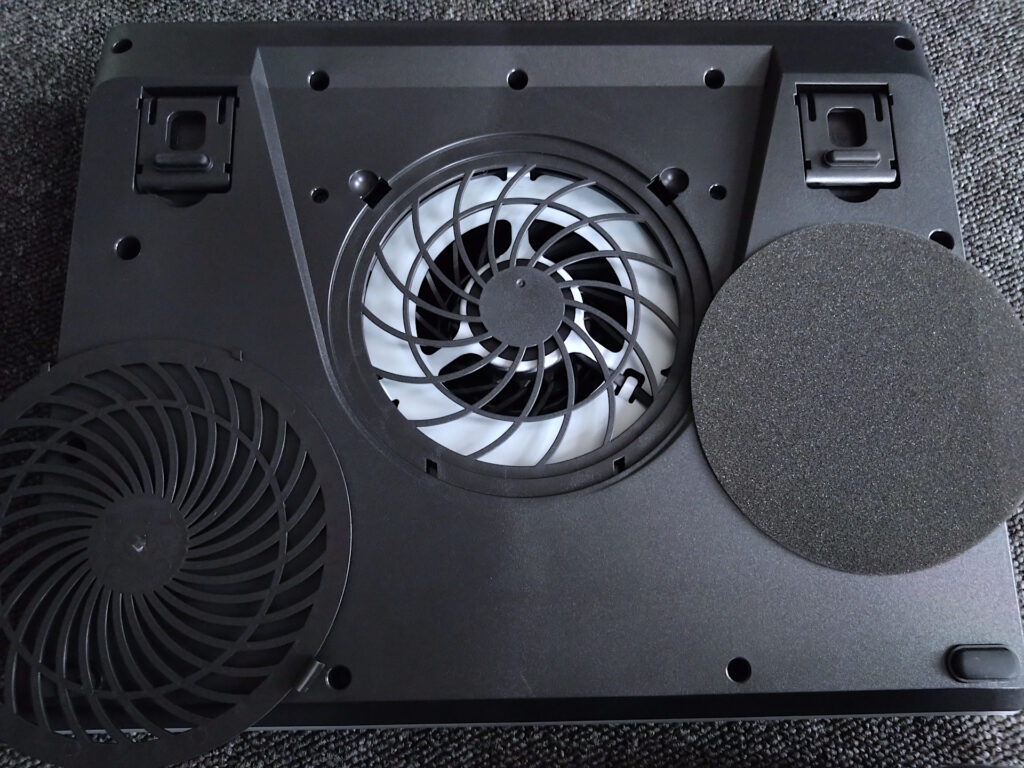
It feels solid enough and the centre fan placement is designed to push air all around the sides, it is a blower type fan design with a dust filter below so in theory if a new laptop was placed on this pad it should actually help with dust control too, provided that foam seal works well. Dimensions of the foam are 38cm wide x 26cm which is a good fit for a my 16 inch ASUS ROG Strix G16 laptop.


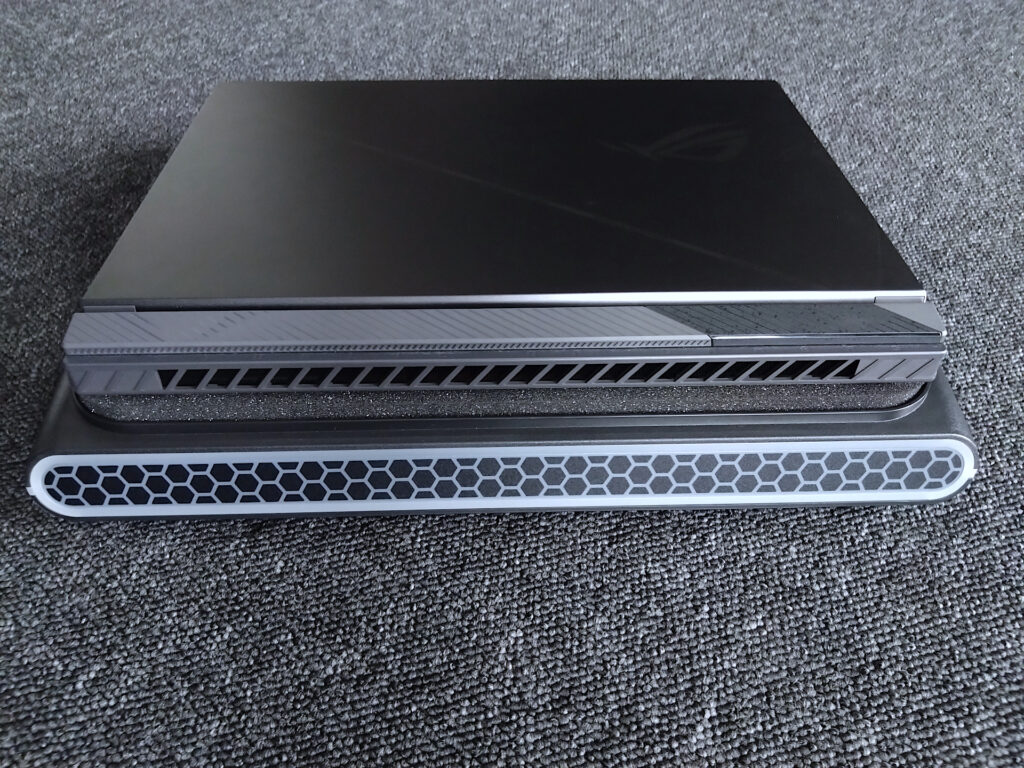
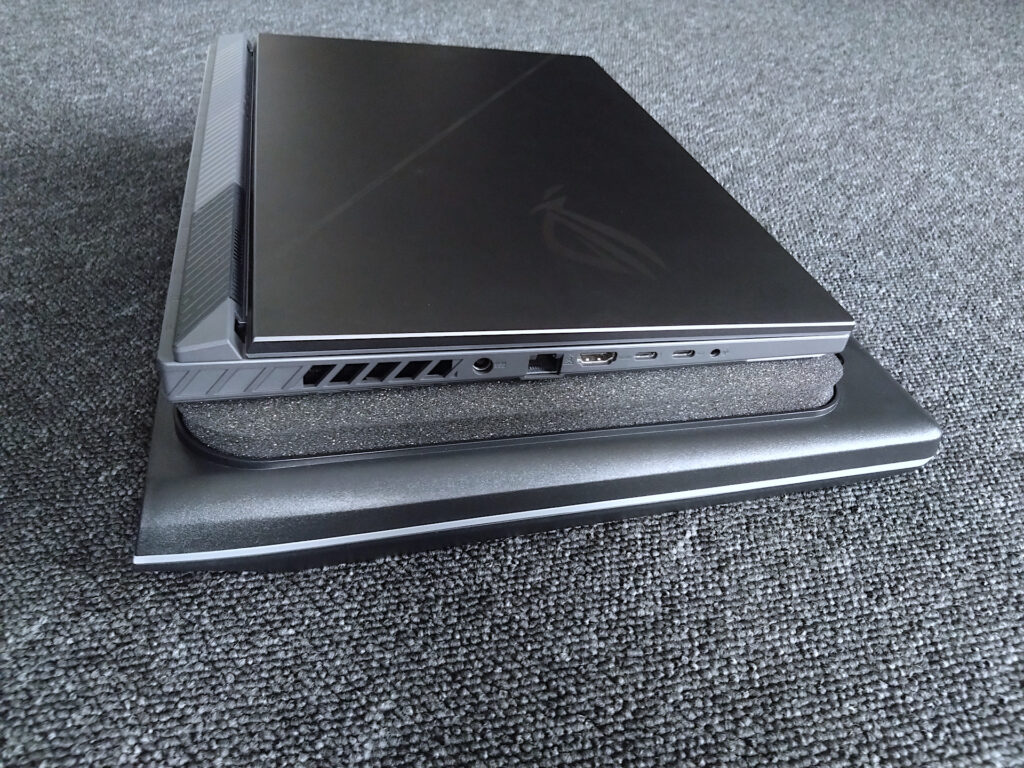
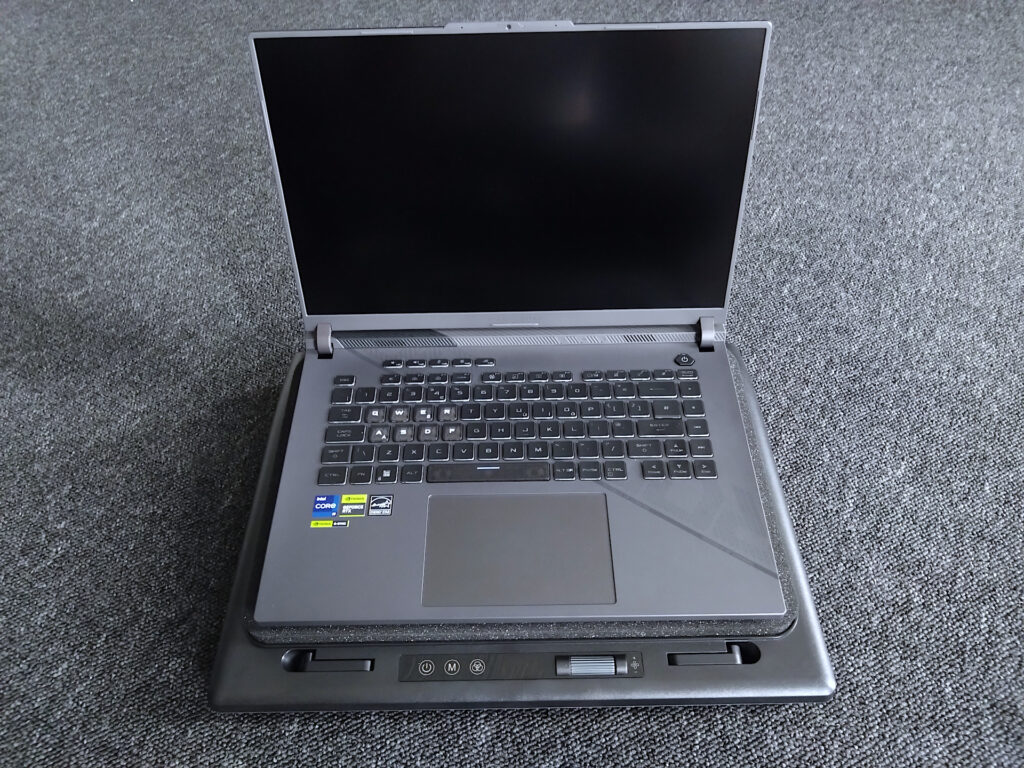
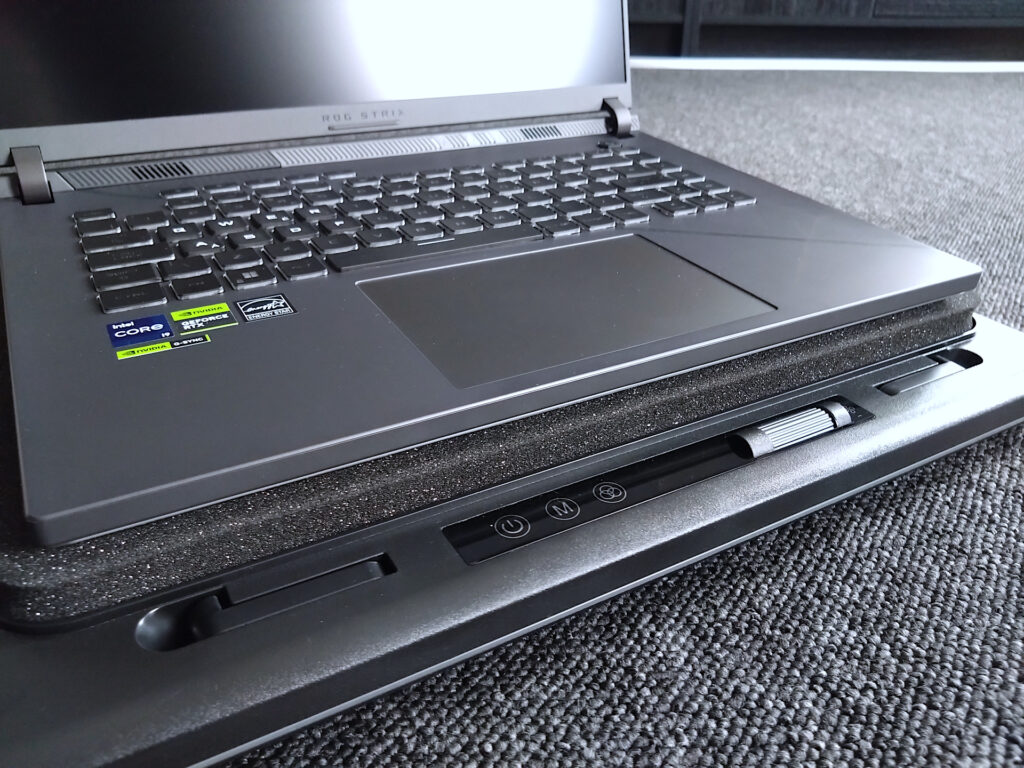
Visually it seems to match the ASUS ROG Strix design / colours and with the laptop in place the foam seal does indeed create a good seal all round.
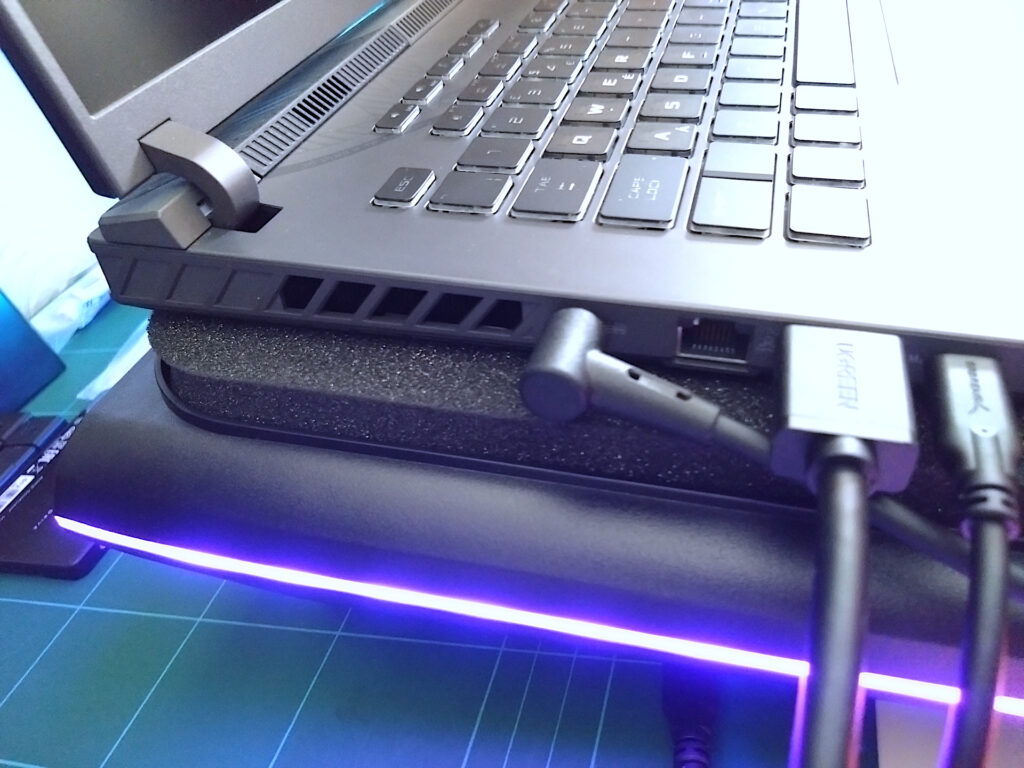
With just the cooling pad powered on and the fan set to 300 RPM (minimum setting) I instantly felt air coming out the heatsink vents of the laptop. It’s so good it felt like the laptop was powered with both sides and the rear vents of the laptop flowing with air. Without measuring equipment I have no numbers to show but all I can say is at the very moment I felt the airflow from the vents I was impressed.
Testing CPU Temperatures with Prime95
With the CPU on default settings but Turbo boost disabled these are the results using the Prime95 in-place Small FFTs max power and heat test. The reason for having Turbo boost disabled is so that the CPU frequency can be maintained as this provides a constant testing condition throughout the tests. Boost mode will vary the CPU frequency depending on temperature so it’s not going to be accurate testing if it were left up to the CPU to determine the frequency.
- Asus ROG Strix G16 2024
- Intel i9-14900HX
- Nvidia RTX 4060
- Arctic MX-6 Thermal paste on both CPU and GPU
Please note The default ASUS setup for this laptop is Liquid Metal Thermal compound on the CPU which I’m currently not using at the moment. This doesn’t impact my testing but overall temperatures would be much lower with liquid metal on the CPU.
| 0 RPM | 300 RPM | 600 RPM | 1200 RPM | 1800 RPM | 2800 RPM | |
| Package | 82 | 77 | 74 | 70 | 69 | 66 |
| VR | 75 | 71 | 67 | 63 | 61 | 60 |
| P-Cores | 82 | 77 | 74 | 70 | 69 | 66 |
| E-Cores | 79 | 74 | 71 | 68 | 68 | 65 |
| PCH | 71 | 63 | 61 | 59 | 58 | 56 |
| DDR1 | 61 | 49 | 49 | 39 | 39 | 40 |
| DDR2 | 60 | 51 | 50 | 40 | 40 | 40 |
| GPU | 55 | 51 | 48 | 45 | 44 | 43 |
| GDR | 60 | 56 | 52 | 48 | 46 | 44 |
| GHS | 64 | 60 | 56 | 52 | 51 | 51 |
- 0 RPM – This represents the cooling pad fan being off.
- 300 RPM – Shows a decrease in CPU temperatures but a significant improvement to the PCH (Intel Chipset) temperature which means the cooling pad is actually providing air to this area. The RAM temperatures are also much better compared to 0 RPM.
- 600 RPM – Further reductions to the CPU temperatures and across the entire laptop, even the GPU which is not even being loaded during these tests. The Llano cooling fan is loud at this setting < Imagine a laptop running almost full blast.
- 1200 RPM – Now we see a CPU that is being cooled well, the cooling pad is doing a good job at this setting and with the CPU at 70 Deg C under the Prime95 test this is a good result. Imagine the laptop fans running full blast and trying to prevent overheating, this is what the cooling fan sounds like at this setting.
- 1800 RPM – Not really seeing a massive improvement over 1200 RPM and it’s starting to sound like a modern Dyson airblade hand dryer, like the ones in a shopping mall.
- 2800 RPM – These temperatures are actually impressive for what the laptop is doing but it does now sound like the hand dryer in full motion.
Testing GPU Temperatures with 3DMARK Steel Nomad
This test will be slightly different from above and I will use my adjusted settings that I apply as this is how I use the laptop on a daily basis so it will be more accurate to how I’m using it. This shouldn’t change any results in terms of how the cooling pad operates. I will also add a flat desk result to show if the cooling pad has any impact to temperatures by simply being used as a stand (fan off mode).
Adjusted settings
- P-Cores maximum boost set to 4GHz
- E-Cores Disabled
- Hyperthreading Disabled
- Voltage Core offset -150mV
- Cache Ratio set to x40
| Flat Desk | 0 RPM | 300 RPM | 600 RPM | 1200 RPM | 1800 RPM | 2800 RPM | |
| Package | 73 | 73 | 60 | 57 | 54 | 54 | 52 |
| VR | 69 | 68 | 60 | 53 | 50 | 49 | 49 |
| P-Cores | 74 | 74 | 57 | 52 | 49 | 52 | 47 |
| PCH | 67 | 69 | 59 | 55 | 53 | 53 | 53 |
| DDR1 | 43 | 44 | 34 | 31 | 28 | 28 | 28 |
| DDR2 | 42 | 44 | 35 | 32 | 28 | 28 | 28 |
| GPU | 76 | 73 | 62 | 61 | 57 | 57 | 57 |
| GDR | 66 | 64 | 54 | 50 | 46 | 46 | 46 |
| GHS | 88 | 90 | 77 | 75 | 70 | 70 | 68 |
- Flat Desk – This is the laptop without the cooling pad and simply placed on the desk. The temperatures are all based on the laptop’s own cooling fans so its showing how it performs completely on it’s own.
- 0 RPM – The laptop is now on the cooling pad with the fan off to see how it compares to the flat desk position. From what is seen the numbers are almost the same with 2-3 degrees difference between some of the numbers. I think this shows possibly an advantage to an extent as when the laptop is on the cooling pad there is actually a pocket of air underneath but at the same time the sides are fully sealed which means the only air opening is the base of the cooling pad and dust filter.
- 300 RPM – With this setting I can clearly see about 10 Deg C lower temps on average across the range but its doing a good job to all the GPU and CPU temperatures. The other areas which have no fans or direct cooling such as the memory modules and Intel PCH chip still show significant improvements with this mode and it highlights that the cooling pad’s air distribution is actually the entire base of the laptop.
- 600 RPM – This shows similar results as the CPU test with an overall reduction across the laptop but the numbers are starting to drop off and it’s getting loud.
- 1200 RPM – Compared to a flat desk the GPU temperature is 20 Deg C lower but 5 Deg C lower than the 300 RPM setting which is good and shows that the extra fan speed has an impact.
- 1800 RPM – Temperatures have hit a wall here, compared to 1200 RPM virtually no difference.
- 2800 RPM – As above, this is showing a tiny improvement.
Fan Speed Audio test
I have used my mobile phone to record this audio so it’s a little bit fuzzy but should allow a comparison between the RPM settings I used.
Summary
The results speak for themselves, the performance of this laptop cooling pad is extremely good and depending on the RPM setting and laptop usage it’s capable of at least 8 to 10 Deg C difference at the lower speed settings from 300 to 600 RPM on the ASUS ROG Strix G16 2024 laptop. The GPU temperatures see some massive temperature drops to the hotspot area with a 12-15 Deg C lower temperature in the Steel Nomad benchmark test which is impressive. Furthermore the memory modules saw a consistent improvement across the RPM range which demonstrates that the foam seal is helping to force air through all the vents on the laptop base and not just the where the internal fans are located.
The cooler can be loud at the higher settings so if you really need to run 2800 RPM just know it’s not going to be quiet. If you’re using a laptop primarily for CPU power and its running calculations / simulations or other extreme CPU intensive loads which cause the CPU to heat up this will definitely help but it’s still going to be impacted by your laptop’s design. A poorly vented laptop base will just limit the points of air entry to the laptop / motherboard so if a certain area needs cooling, like the PCH (Intel Chipset), you might be better drilling holes (in a neat pattern) over that area so this / a cooling pad will provide additional benefits.
I also like the design aspect and dust filter which will keep any laptop cleaner internally and minimise dust entry for much longer.
Some Actual Gaming Temperatures
Benchmarks / stress tests are good but in game temperatures are what matters to me so these are a few games I play on the laptop with my adjusted settings and 1920×1080 @60Hz / 60fps (I need a new monitor).
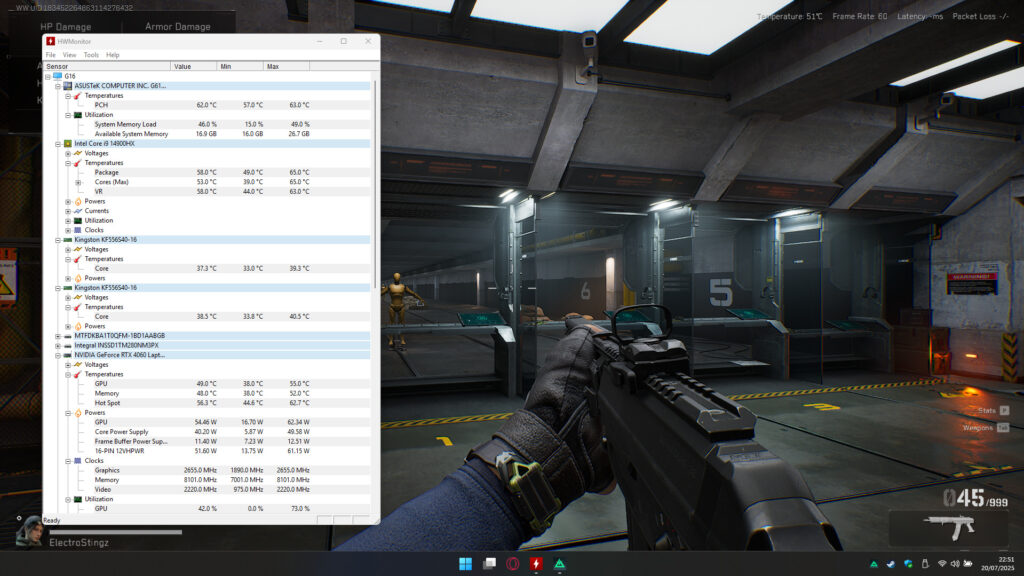
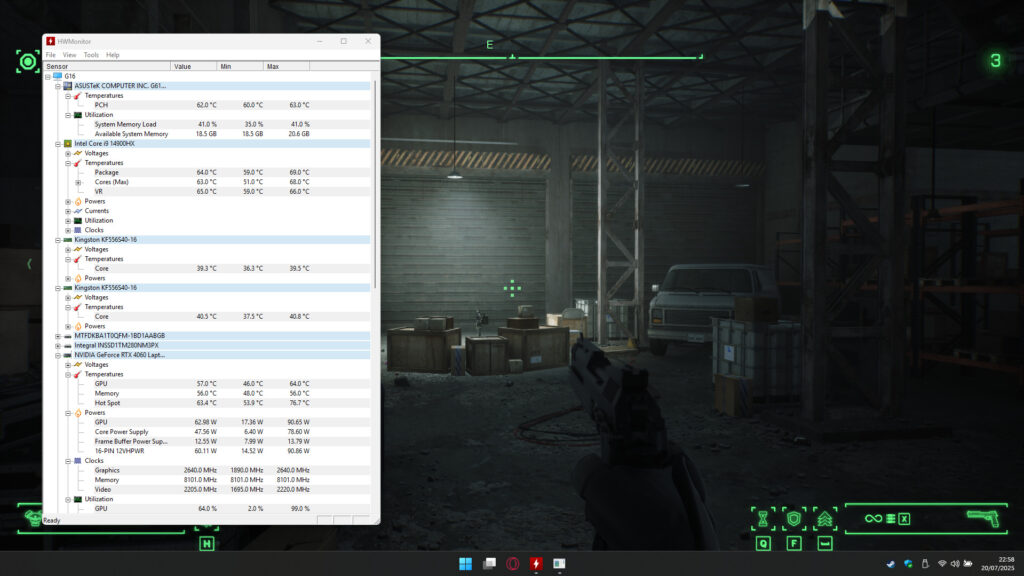
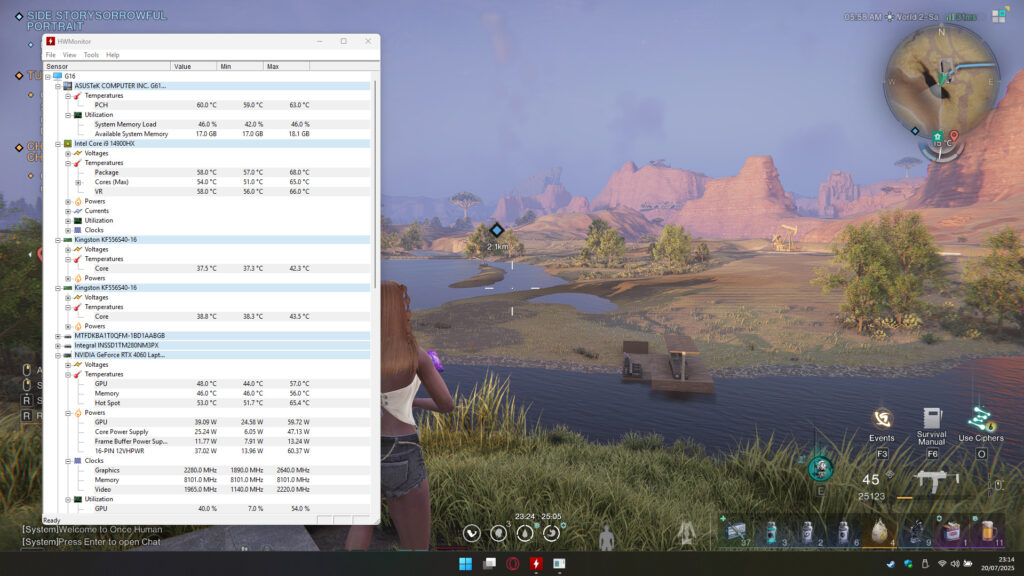
Delta force I completed a full online warfare match, Robocop Rogue City I completed a small game save that sees some massive explosions and Once Human I completed the Theta Dungeon Silo. So these are representative of real world game play with my laptop settings and the Llano cooling pad on 300 RPM.
Conclusion
This is well worth the price when it’s on offer or if you just want to keep your high end gaming laptop running as smoothly as possible buy one anyway, it’s too good not to have one.